Exam Feedbacks
Exams feedbacks are enabled after the presentation of the exam questions from the organizers and will be closed when the discussions start. Feedbacks will be reviewed by the organizers and are visible to all delegations.
Get Started
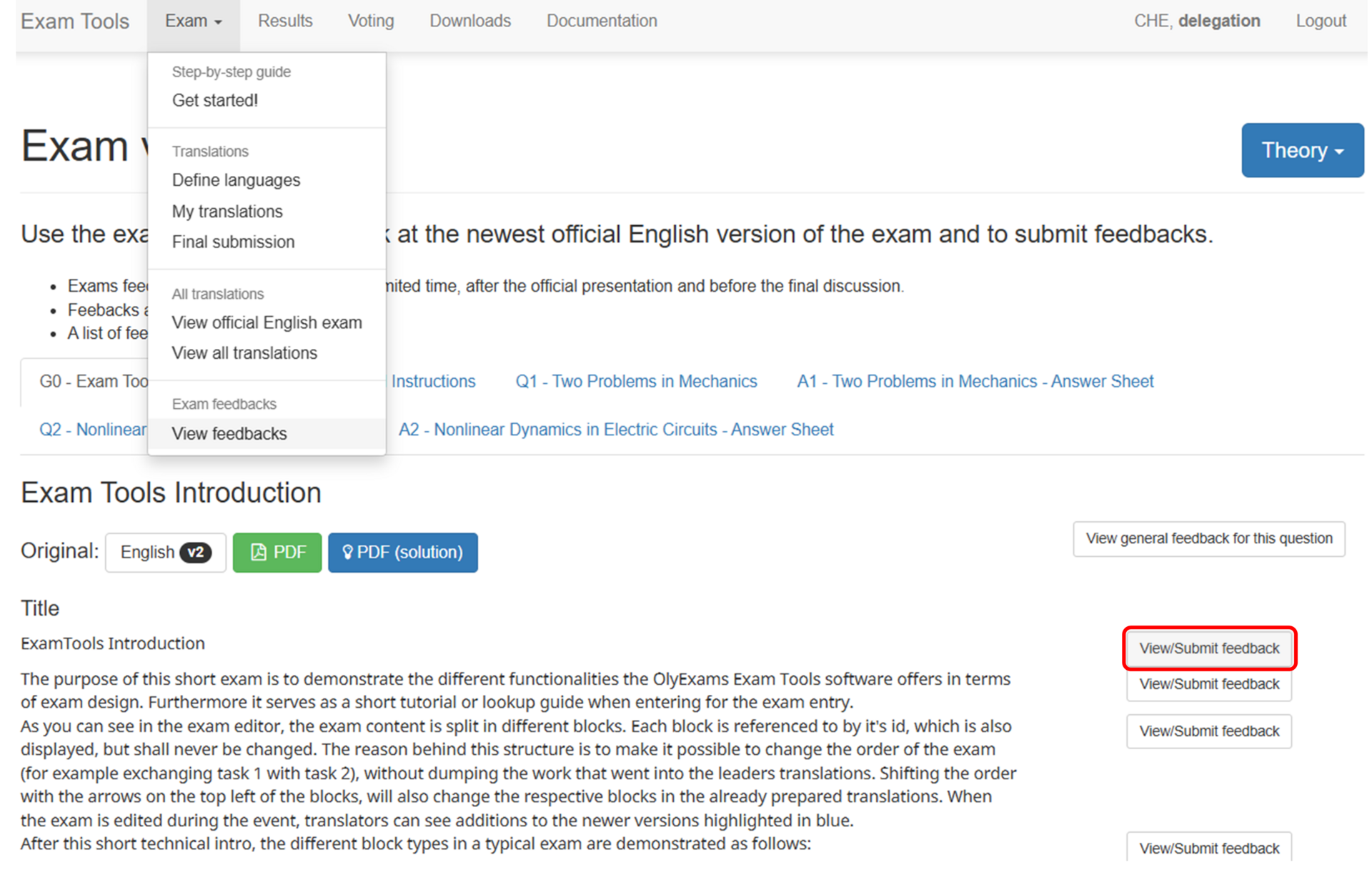
This is the start page of the Exam Feedback. It can be found in the Exam dropdown menu on the top. Click on View feedback and choose the exam to submit your own feedback.
Add Feedback
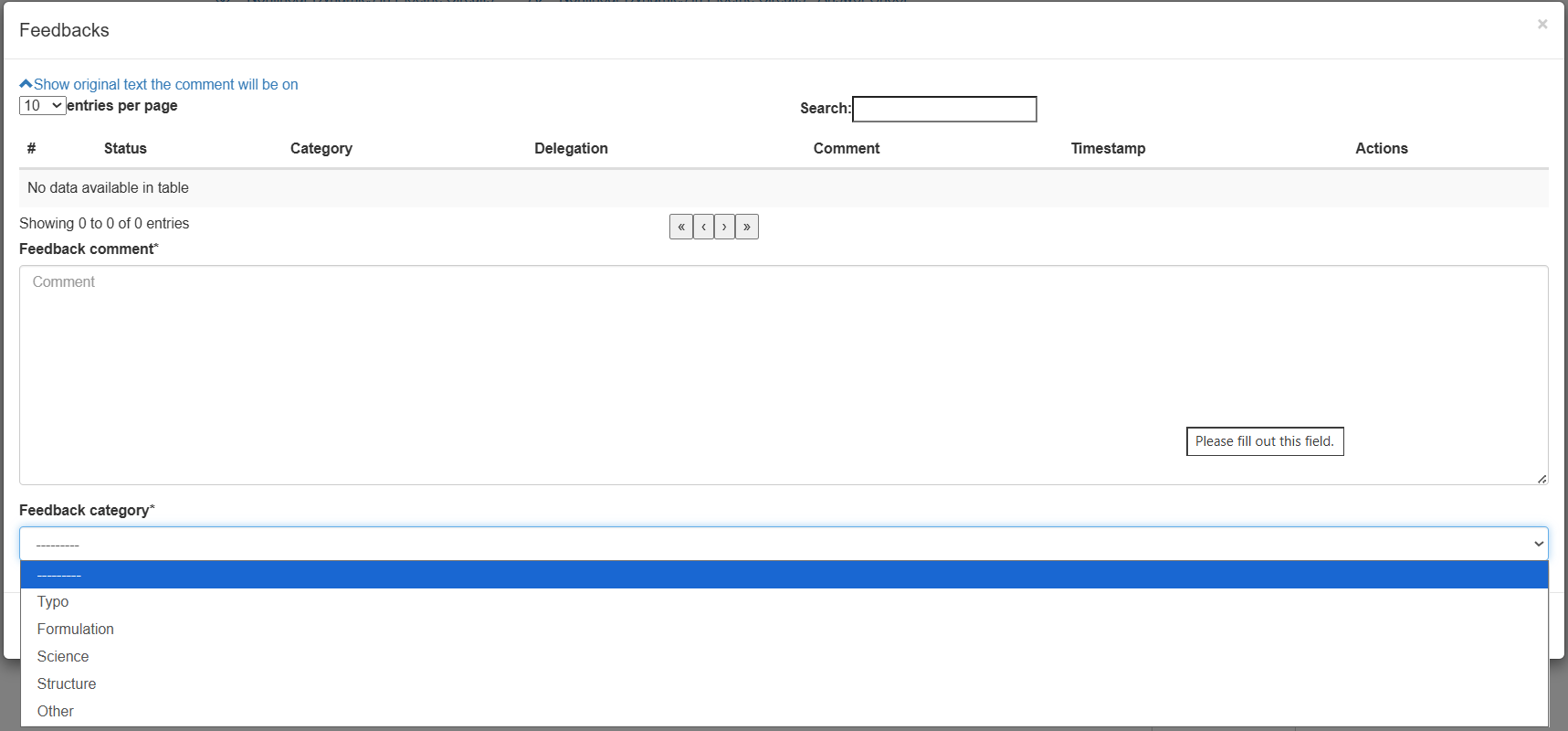
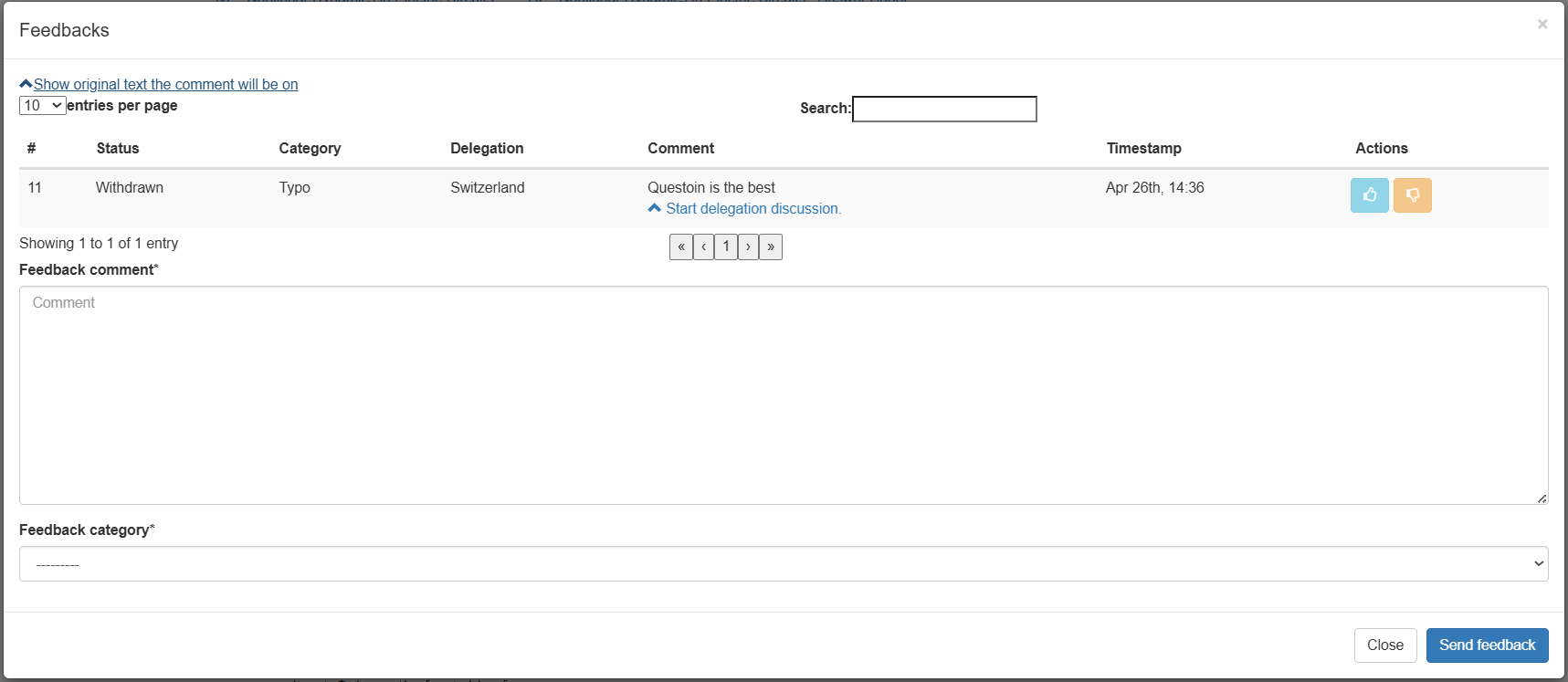
After clicking the view feedbacks button a popup menu appears giving you a range of options to specify the target of your feedback. You can submit a feedback on any specific part of the question including the subparts by clicking the View/Submit Feedback button. In the opened popup window, you can enter your feedback, select the feedback category (Typo, Formulation, Science, Structure, Other). The closer this specification is related to your question the better the authors will be able to implement changes according to your intentions. Be precise and be specific. Word your feedback as a concrete proposition. For example if you think a certain part of a question needs clarification, write down a sentence as you would include it in the final exam. Finally click the Send feedback button and a green confimation banner will tell you that your feedback has been added.
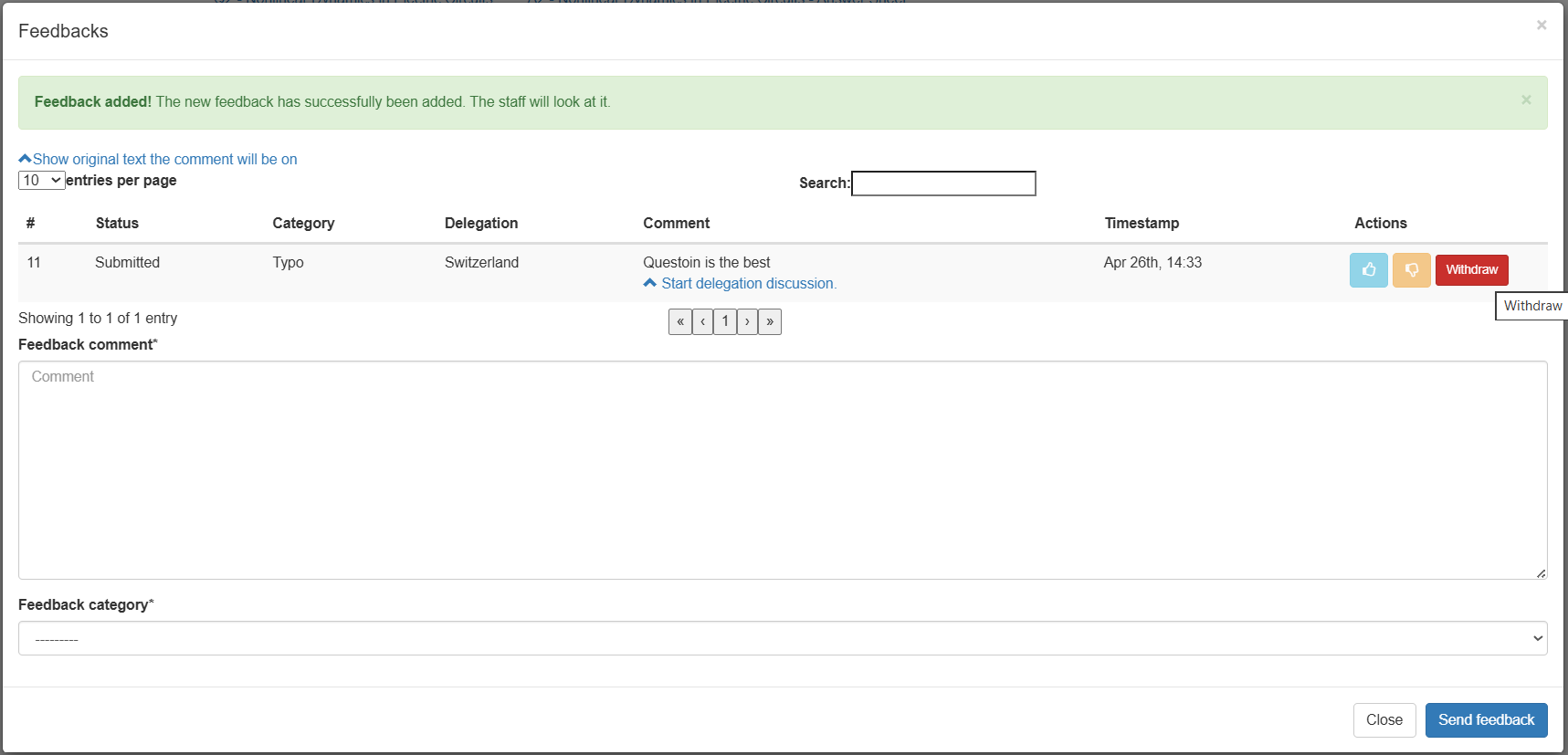
You can withdraw your feedback after sending for any reason using the Withdraw button. It will appear as withdrawn in the feedback status.
 |
| 
Review Feedbacks
All Feedbacks for the currently disscussed exam are visible to everyone. While the leaders prepare feedbacks, the authors can already react to them. Each feedback can have one of four states which is controlled by the organizers:
- Submitted: The feedback has successfully been submitted to the server and is now visible to everyone.
- Scheduled for voting: This feedback will be partially or entirely part of a voting of the entire board.
- Implemented: The changes suggested in this feedback have been included in the exam, either after a voting or after having been accepted by the authors.
- Settled after voting: The creator and the authors have come to an agreement after voting.
- Withdrawn: The author of feedback has withdrawn their comment.
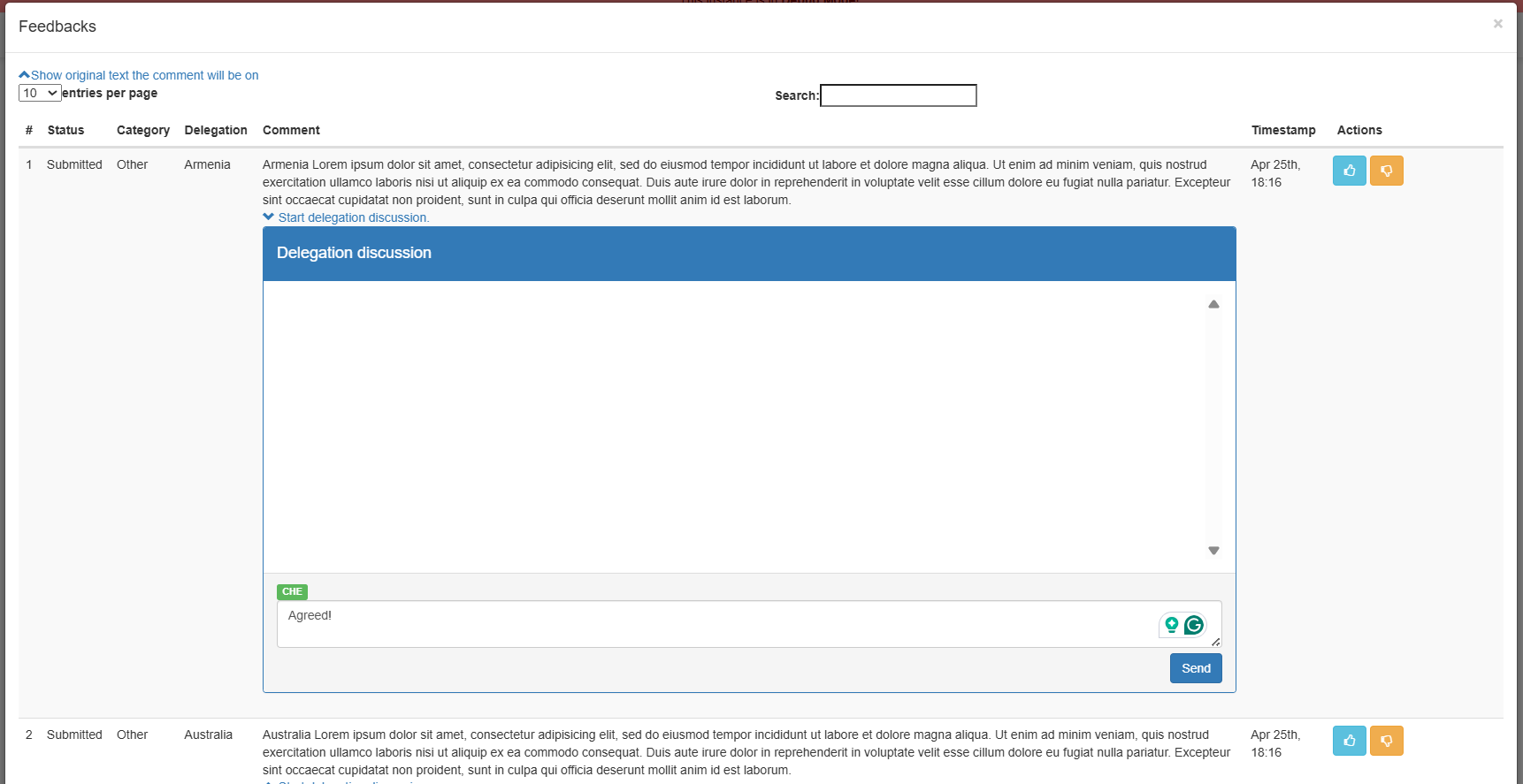
Additionally, you can like or dislike a feedback. Simply click either of the thumbs up or thumbs down buttons in the Actions column. If, for example, you see a feedback which makes the same point as you were about to make, you can give this feedback a like instead of submitting your own. This will help the authors decide quickly which feedbacks are important to the most people. You can also comment on the feedbacks by clicking the Start delegation discussion button.